
Run a maintenance window
Plan work so that what you expect to go down does not alert anyone, and anything still down when the work ends alerts once.
GuideReviewed against the application source on 3 October 2026
Before you start
- You need permission to edit current outages and to write. Viewers can see windows but not schedule them.
- Only monitored things can be covered: switches and stacks with a management address, access points with a management address, servers with an address, and polled addresses. Each appears once.
- An access point that Juniper Mist reports is offered as “Juniper Mist’s disconnected report”; the window quiets that report.
Steps
From planning to the one alert that matters
Open Outages
Go to Outages and choose Schedule maintenance. You need edit permission for current outages.
Choose what it covers
Pick a site, a closet, a switch, an access point, a server or an address. Only what Cenovel monitors is listed: a record without a management address raises no alerts, so there is nothing to quiet.
Set the times and the reason
Enter the start and end in your time zone; Cenovel stores them as exact instants. A reason is required and a window can be at most 180 days.
Do the work
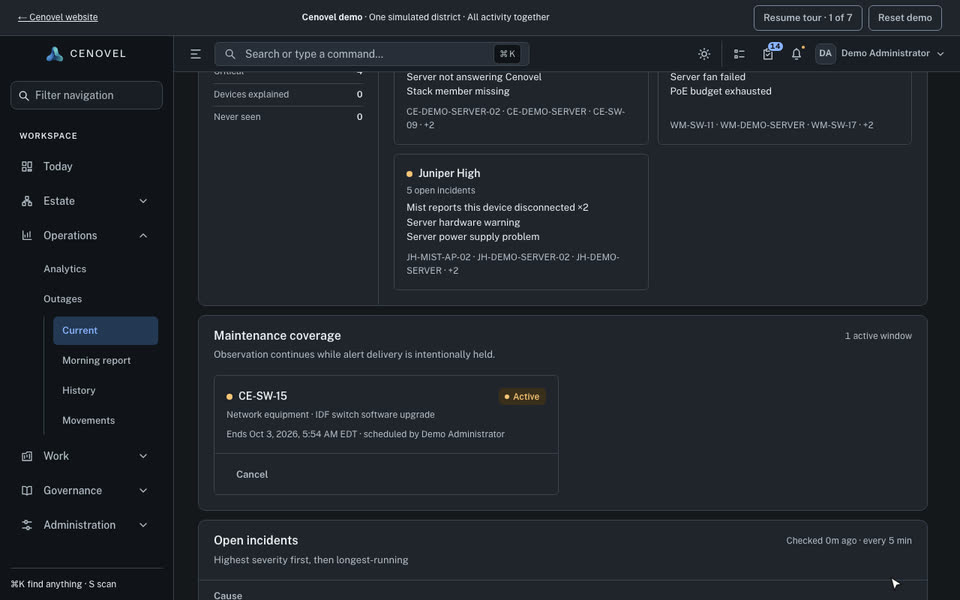
While the window is open, a quieted problem is left off Outages, Today and the morning report, and no alert is sent. The site page still shows it, marked Maintenance.
End or cancel
When the window ends, or you cancel it with a reason, anything still down returns to every page and alerts once. Something that recovered during the window sends nothing.
Screens are simplified; the wording is the console’s.
See what goes quiet
Choose a target, adjust the window and drag the clock across the night. Watch which outages stay on Outages, which go quiet, and the single alert sent when a quiet outage is still down at the end.
Quiets every alert for this switch or stack. Access points behind it that fail on their own still alert.
At 23:35 the window is running.
On Outages and Today
Quiet, under maintenance
Alerts sent so far
A fictional night at Willow Middle: WM-SW-01’s power supply failed at 21:40, before the window, and stays failed. WM-SW-02 is upgraded and goes down twice. The coverage rules are the product’s.
What each choice quiets
| Target | What it quiets |
|---|---|
| Site | Every monitored switch, access point and server at this site, including any added during the window. |
| Closet | The monitored switches and servers in this closet, and the access points behind those switches. Other closets at the site still alert. |
| Network equipment | Every alert for this switch or stack. Access points behind it that fail on their own still alert. |
| Access point | This access point. Its switch and the other access points still alert. |
| Server | This server: not answering and hardware health. Other servers still alert. |
| Address | Every alert for the device at this address. Other addresses still alert. |
How a window ends
- A window quiets only while it is running. One scheduled for later quiets nothing yet.
- If a quieted outage is still open when the window ends or is canceled, it returns to Outages, Today and the morning report and alerts once, however many parts of Cenovel notice the end.
- An outage that recovered during the window sends nothing.
- An alert already sent before the window started is not sent again.
- Canceling needs a reason. An ended or canceled window cannot be edited.
The demo has a working Outages page with Schedule maintenance.
Try this in the demoSchedule from the API
Scripts can schedule the same windows. The token needs the same permission as the console.
# 1. List what can be covered. Each row has the type and id the window needs.
curl -H "Authorization: Bearer $TOKEN" https://cenovel.example.org/api/v1/maintenance-targets

# 2. Schedule the window. Times are exact instants; timezone is how the console shows them.
curl -X POST -H "Authorization: Bearer $TOKEN" -H "Content-Type: application/json" \
  https://cenovel.example.org/api/v1/maintenance-windows \
  -d '{"targetType":"network-node","targetId":"<id from step 1>","targetName":"WM-SW-02",
       "startsAt":"2026-10-08T02:00:00Z","endsAt":"2026-10-08T06:00:00Z",
       "timezone":"America/New_York","reason":"IDF-2 switch software upgrade"}'
Refusals come back in words, for example “Explain why alerts are being suppressed.” or “Maintenance must end after it starts.”
Describes the release being prepared for deployment. Check the behavior on your installed release.