
Replace a failed switch
Swap the hardware in a closet position and record where the old unit went, in one step.
GuideReviewed against the application source on 3 October 2026
Before you start
- You need permission to edit the equipment. A unit that is checked out to someone must be checked in first.
- Have the new unit to hand: a spare recorded in a storeroom, or a unit whose serial you can scan or type.
- Decide what happens to the old unit: back to a storeroom as a spare, to the vendor on the RMA board, or to disposal. If E-Rate paid for it and it is going to disposal, have the reason ready.
Steps
- Open the switch’s page (or the stack member’s, or the part’s) and choose Replace this switch.
- Choose where the new unit comes from: A spare from storage, or Enter or scan its serial and pick its model from the catalog. If a record in storage already has that serial, that record is used.
- If the model differs from the old one, confirm the model change. A different kind of equipment is refused.
- Choose what happens to the old unit: Spare in a storeroom (and which storeroom), RMA to the vendor (with what is wrong and, if you have it, the vendor’s case number) or Disposal (with the reason).
- Choose Replace. The result says where the old unit went and what changed.
- If Cenovel had verified the switch’s identity, open the new unit’s page and choose Confirm identity. Post-work reachability checks wait for this.
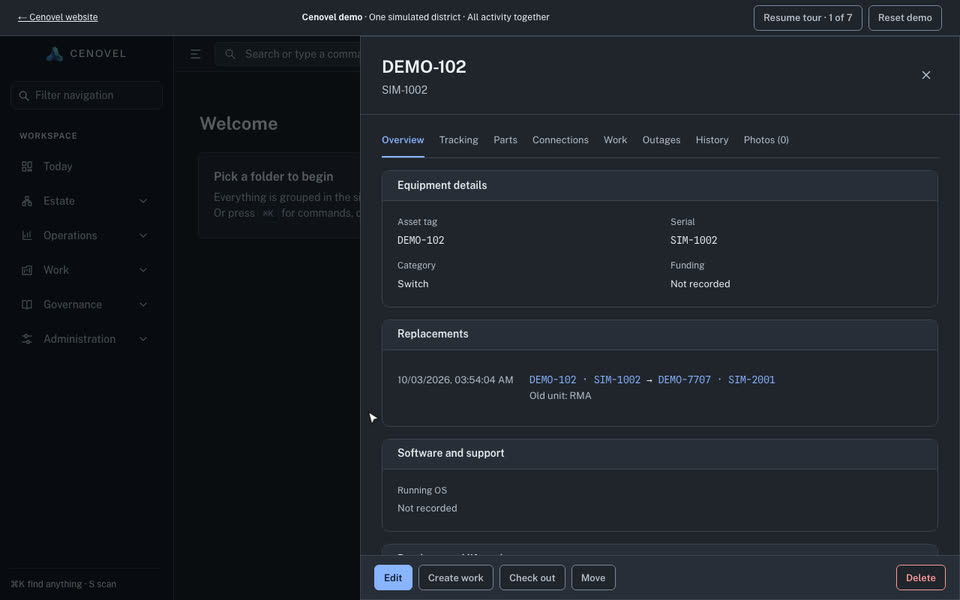
Practice on the working Replace dialog in the concept page, or on a real switch page in the demo.
Try the Replace dialogCheck the result
- The switch keeps its name, management address, ports and links. Cenovel keeps polling the same address.
- Its open outage is closed with the event “Replaced by serial on date”. This records the swap, not a repair of the old unit.
- The old unit has its own record: in the storeroom, on the RMA board, or pending disposal.
- The switch timeline shows the replacement, and the E-Rate export lists the chain on its Replaced units sheet.
If someone swapped it already
When Find devices sees a different serial in a known position, the switch page shows a Confirm replacement prompt. Confirm it to open Replace with the serial filled in, or choose Not a replacement and say why.
See also: Replacement and disposition · Inventory and the asset lifecycle
Describes the release being prepared for deployment. Check the behavior on your installed release.