
Move, check out and hand over equipment
Read an asset’s record in its drawer, move it, check it out and in, hand it to the next holder, and record whether it is approved to connect.
GuideReviewed against the application source on 3 October 2026
Open the record
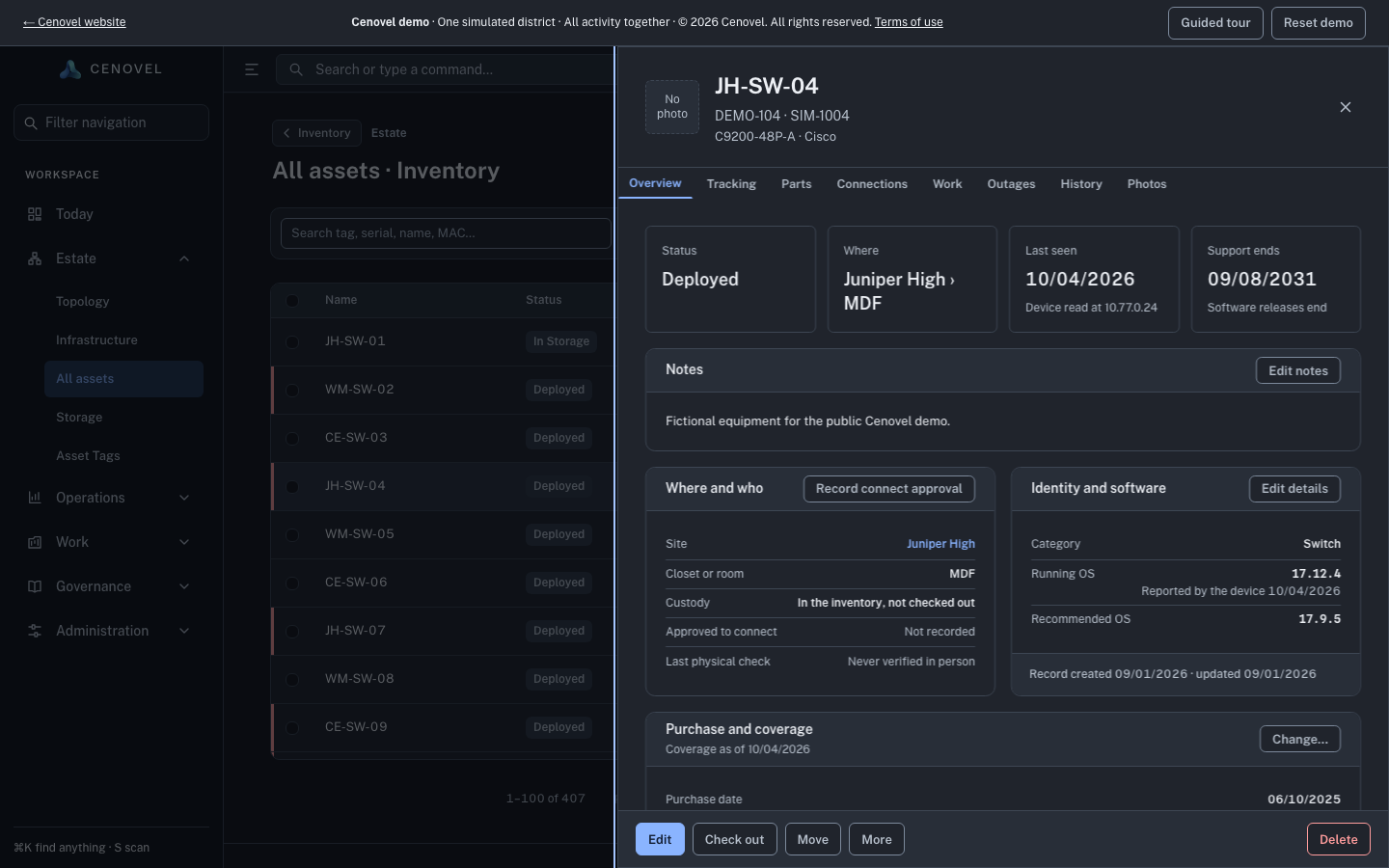
Where is this unit, who has it, and how do I move it, lend it or hand it on? Open any asset, from search (Ctrl+K, or ⌘K on a Mac), a list or a closet. The record opens in a drawer. Its header names the unit, with its tag, serial, model and vendor; the tabs under it are Overview, Tracking, Parts, Connections, Work, Outages, History and Photos.
Read the Overview
Four cards answer the first questions: Status, Where, Last seen (the newer of a device read and an in-person check) and Support ends. The facts below are grouped, and each group has one action:
- Where and who
- Site, closet or room, custody, whether it is approved to connect, and the last physical check. Action: Record connect approval, for network devices.
- Identity and software
- Category, MAC address, running and recommended OS, and when the record was created and updated. Action: Edit details.
- Purchase and coverage
- Purchase date, order, cost, condition, warranty, contracts, vendor lifecycle, how long the record must be kept, and documents. Action: Change… (warranty, condition and documents).
- E-Rate
- For funded units only: funding, the funding request, install date, when it may leave the district or be disposed of, and transfers. Action: Record a transfer.
The facts change with the unit’s state: a disposed unit shows its disposal, a unit in storage its storeroom, and a part fitted in a switch the switch and position it is in.
Move a unit
- Choose Move.
- Choose the Site or closet; the hint says where it is now. Add the room or area if the model records one, and a Note, which is kept in the move history.
- Choose Confirm move. Check the Where card, and the unit’s place in the register.
A part fitted in a switch says so before you move it, because moving it takes it out of that position.
Check a unit out and in
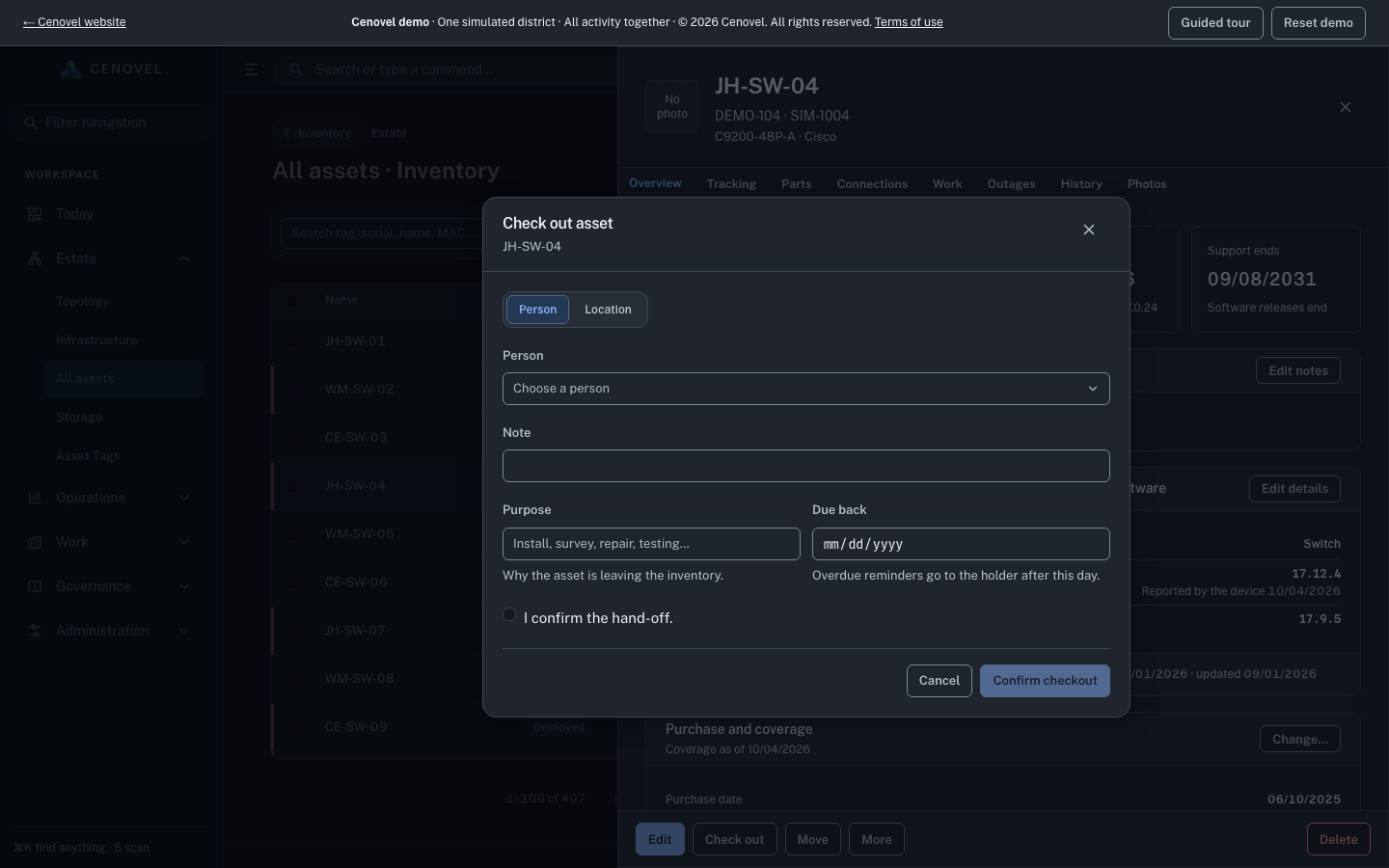
- Choose Check out. Assign it to a Person or a Location, add a note, a Purpose and a Due back day. Overdue reminders go to the holder after that day.
- Tick the confirmation, for example “I confirm Demo Technician has collected it.” Do this only after the physical hand-off.
- Choose Confirm checkout. The Status card shows who holds it and when it is due back.
- To return it, choose Check in, choose the return status and location (by default, back where it was), the condition and a note, confirm it is back, and choose Confirm check in. A condition of Send to RMA or Send to disposal sets the matching status.
If the unit is already held by someone, Check out says who and since when. When you may hand it over, it offers to hand it over instead; only the holder, a department administrator or an Administrator EX can.
Hand a unit over
When a unit moves straight from one holder to the next, use More › Hand over instead of checking it in and out again. The dialog shows who holds it and since when. Choose the next Person or Location, add a note, confirm that the next holder has taken it, and choose Confirm hand-over. Both holders are recorded; the purpose and due date carry over.
Record connect approval
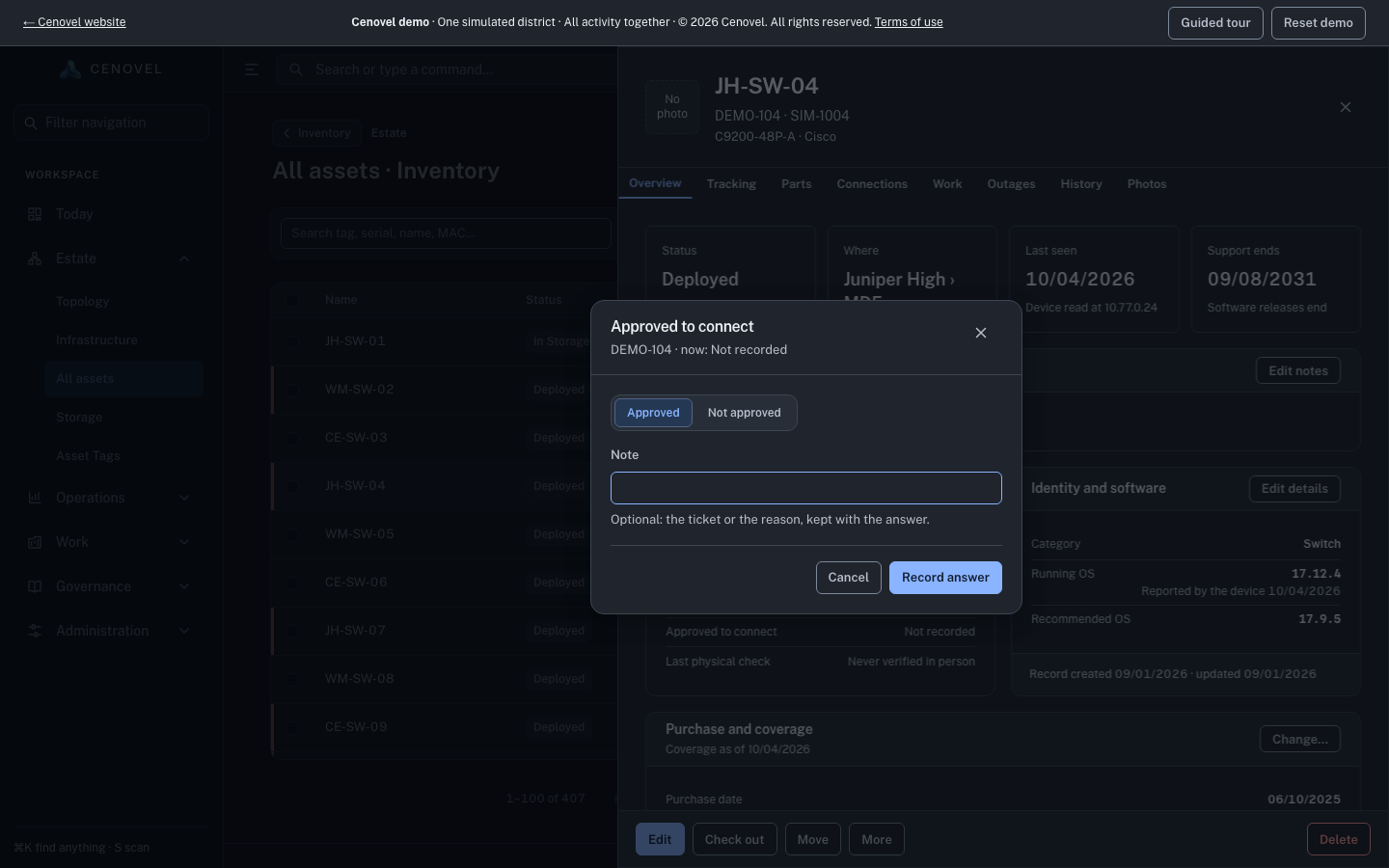
Is this device approved to connect to the network? The answer is a dated fact in Where and who: “Approved” or “Not approved” with when and by whom, or “Not recorded” when nobody has answered.
- In Where and who, choose Record connect approval. The dialog shows the answer held now.
- Choose Approved or Not approved, and add an optional note, such as a ticket number or the reason.
- Choose Record answer. Cenovel confirms, for example “Recorded: DEMO-104 is approved to connect.”
If someone recorded an answer while your dialog was open, Cenovel refuses yours, shows the answer now held and changes nothing. “Not approved” and “Not recorded” are different answers and read differently.
Repairs, work, replacement and losses
- Start repair opens the RMA board with a new repair case for this unit.
- Create work creates a work item about the unit.
- Replace appears for a unit fitted in a position; see Replace a failed switch.
- Report lost or stolen records the loss for approval; the Overview then shows the report, with police and insurance references and a way to record that it was found.
Open the JH-SW-04 record in the demo and try Move, Check out and Record connect approval. Your changes stay in your browser session.
Open an asset in the demoSee also: Inventory and the asset lifecycle · Status states
Describes the release being prepared for deployment. Check the behavior on your installed release.