
Plan a closet visit
Before you go: what is open in the closet, how to get in, which spares to bring and what your work affects, all on the closet’s Overview.
GuideReviewed against the application source on 3 October 2026
The question
I have to go to this closet. Can I get in, what is wrong there, what should I bring, and what will my work disturb? The closet’s Overview answers all four on one screen. Open a site, choose Closets, then Open closet. The closet opens on its Overview; the other closet pages are Devices, Capacity, Lifecycle, UPS, Projects and Photos.
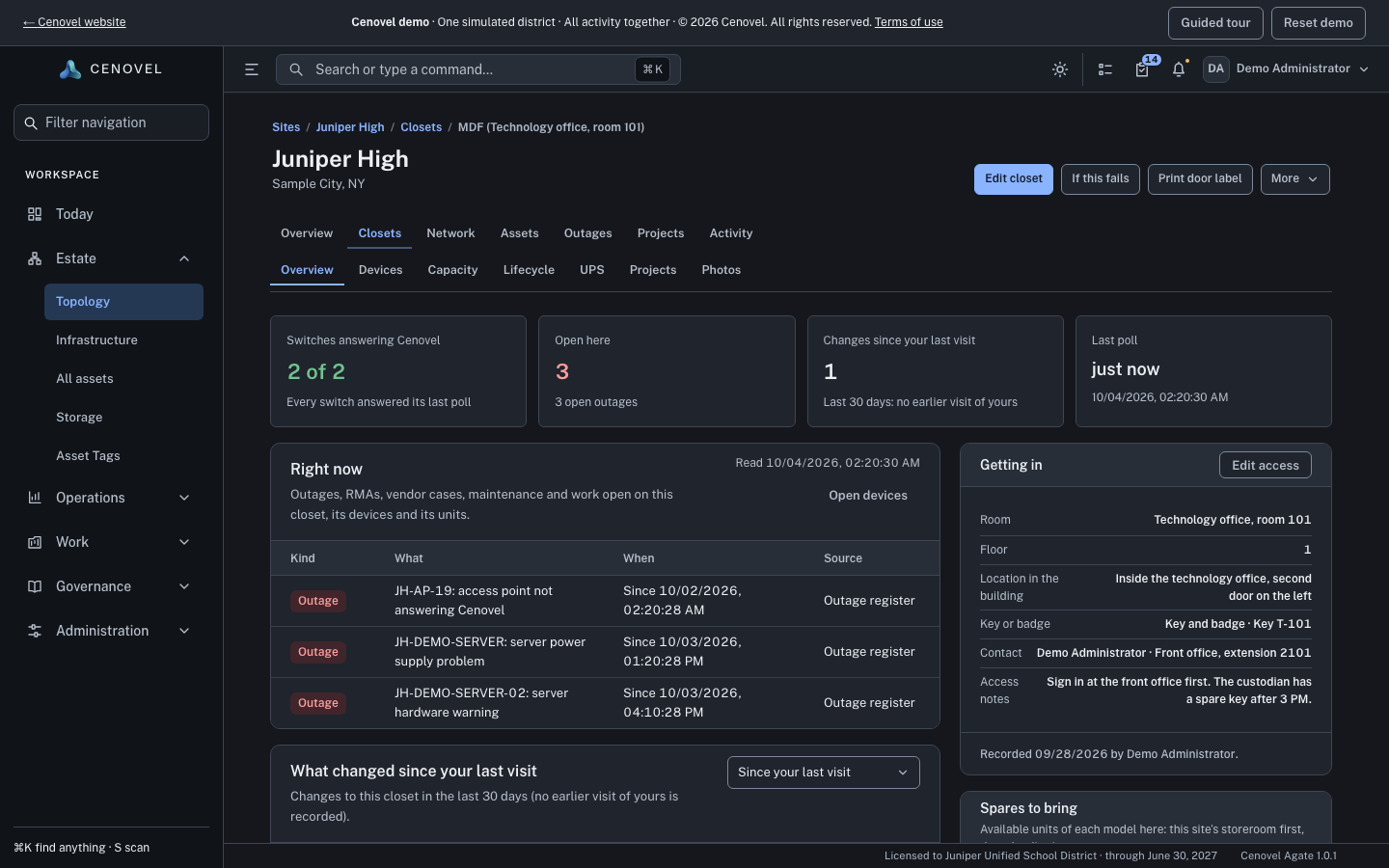
Read the band first
Four cards sit across the top. Each one is a count you can act on, and each matches the panel below it.
- Switches answering Cenovel
- How many of the closet’s switches answered their last poll, with the reason the others did not, such as “1 not answering Cenovel (timed out)”. Select it to open Devices.
- Open here
- Everything open on this closet, its switches and its units: outages, RMAs, vendor cases, maintenance and work. It equals the rows in Right now.
- Changes
- How many changes are in the range you chose in What changed. Its label follows that choice, for example “Changes in the last 7 days”.
- Last poll
- When Cenovel last read this closet’s switches.
See what is open: Right now
Right now lists each open item with its kind, what it is, when it started or is due, and where the fact comes from (Outage register, RMA board, Vendor cases, Maintenance windows or Projects). An outage during a maintenance window says so. Open devices takes you to the closet’s Devices page.
If one source could not be read, a note names it and says the other sources were read. Nothing open reads “Nothing open here”; it is never shown when a source failed.
Check how to get in
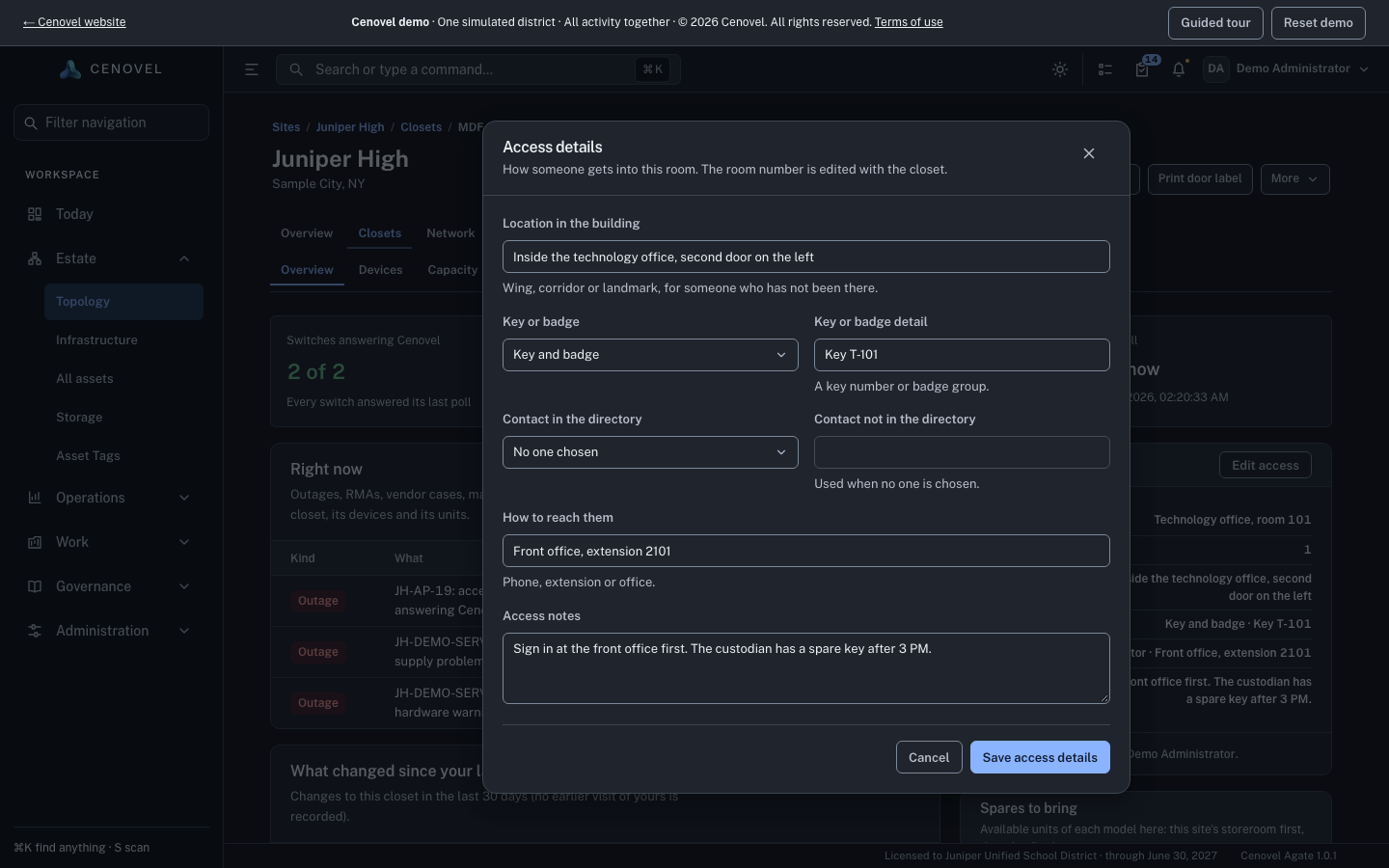
Getting in holds the room and floor, where the room is in the building, the key or badge, a contact and access notes. The footer says who recorded the details and when. A field nobody has recorded reads “Not recorded”.
- Choose Edit access. You need edit permission for the closet; without it the button says so.
- Fill in Location in the building, choose Key or badge (No key or badge needed, Key, Badge, Key and badge, or Escort required) and add the key or badge detail.
- Choose a contact from the directory, or type a name under Contact not in the directory, and say How to reach them. Add any Access notes.
- Choose Save access details. Cenovel says “Saved the access details for this closet.”, or “Nothing changed, so nothing was saved.” The change appears in What changed, with the fields that changed.
The room number is edited with the closet itself, not here. If someone else saved the access details while your dialog was open, Cenovel refuses the save and asks you to reload; nothing is overwritten.
Decide what to bring: Spares to bring
Spares to bring lists each model in this closet, how many are here, and the nearest storeroom with available units of that model: storerooms at this site first, then the district storerooms. A storeroom’s minimum stock level is shown beside it when one is set. “None in stock” means no storeroom Cenovel would offer holds one; a faulty unit is never counted as available, and another school’s storeroom is never offered.
Know what your work affects
What a visit affects counts what depends on this room, from Cenovel’s dependency trace, and Open impact view shows the trace. When nothing recorded links to the room, it says “Nothing recorded depends on this room.”, which means no links are recorded, not that nothing depends on it. If you plan to take something down, schedule a maintenance window for the closet first.
Catch up: What changed since your last visit
The change log shows the latest six changes to the closet since you last opened its page: units placed or moved, replacements, stack changes, new switch neighbors, port moves, physical counts, ended maintenance windows and edits to the closet record or its access details, each with its source and who made it. Show all lists the rest.
Use the range control to choose Since your last visit, the last 7, 30 or 90 days, or Since a date. If you have never opened this closet, the log covers the last 30 days and says so. The last physical count of the room or its site is stated under the log. Cenovel keeps only the OS version a switch last reported, so an OS change appears here only when someone records it on the closet.
Survey and notes, and the door label
Survey and notes holds who surveyed the closet and when, its action items and survey notes. To label the door, choose Print door label: Cenovel shows a 4 by 2 inch label with a QR code that opens this closet’s page, and Print sends it to your browser’s print dialog.
Open the MDF at Juniper High in the demo and plan a visit.
Open a closet in the demoSee also: Check a closet’s capacity · Read a closet’s lifecycle · Sites, closets, stacks and ports
Describes the release being prepared for deployment. Check the behavior on your installed release.