
Work an outage
Notice an outage from the header, read it on Outages, open its incident page with the situation, timeline and snapshots, and see the switches behind it as one outage.
GuideReviewed against the application source on October 12, 2026
Notice it: the outage signal
While an outage is open, the Outages icon appears in the header with a mark: a ring for a critical outage, a triangle for a warning. It never shows a count. A question mark means Cenovel can’t reach the management network, so it can’t tell what is down. Choose it for Open outages: the worst six, each written as place, device and state with its reason and how long it has been open. Choose a row to open that outage, or Open Outages for all of them. The signal is shown only to people who may open Outages, and refreshes every 30 seconds.
Read Outages › Current
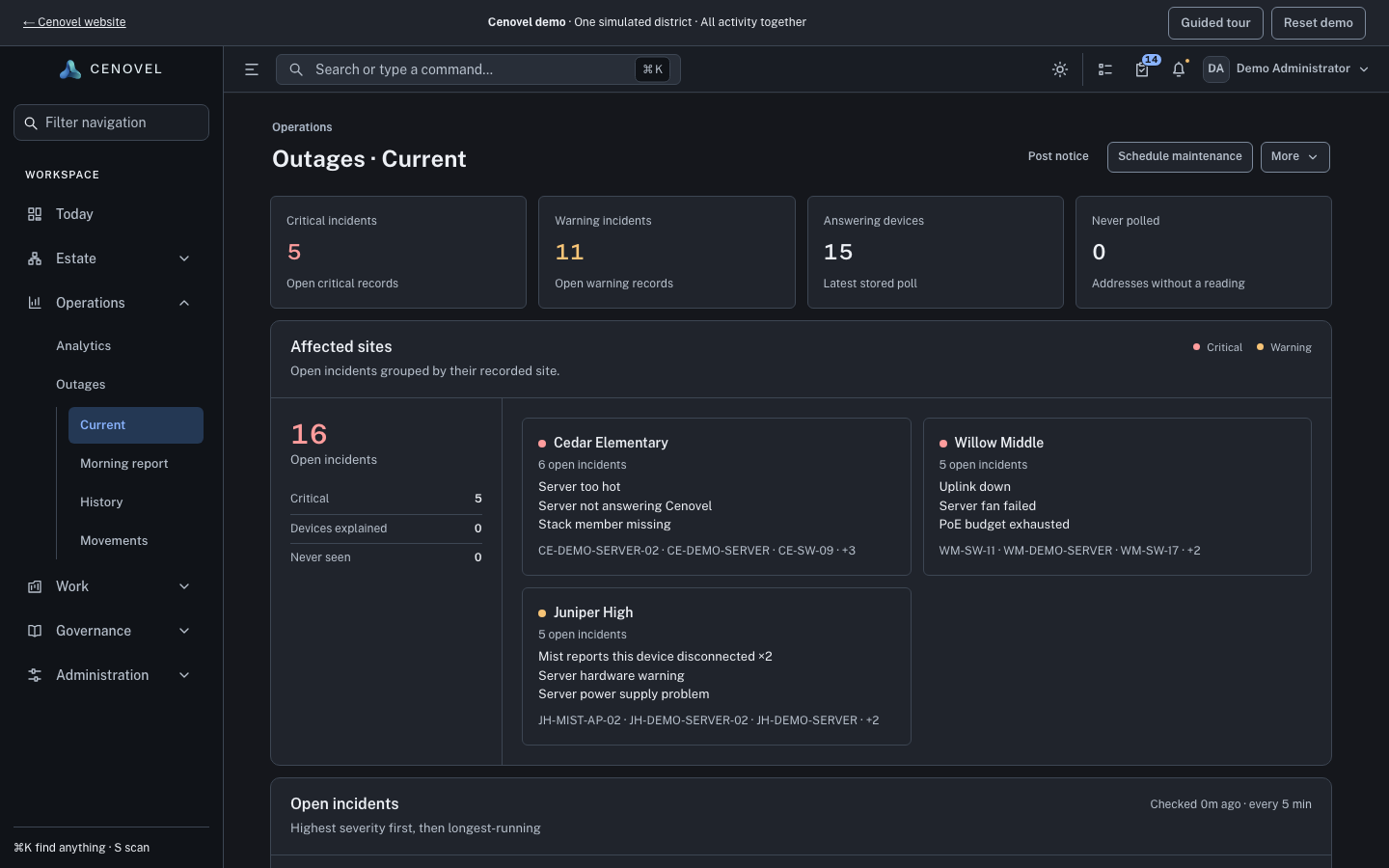
Outages is the first page of the Network group. Current opens with a strip of figures, with when it was checked and how often devices are polled, and a notice for each condition about Cenovel itself. Open incidents lists faults worst first, then oldest, with access points in their own section; filter by site or cause. Below are Maintenance coverage, the notice board, and the sites and polled devices beside the last day’s changes.
Open one outage
- Choose a row. The outage opens in a wide drawer at once, with Timing, Accounted for (devices whose failure this outage explains), Recorded events, the hardware snapshot, any Juniper Mist alarms, device logs and the guides for that device.
- From the drawer choose Open incident for the incident page, Other outages at the site, or Open vendor case, which starts a case with the device, site, closet and evidence filled in.
Read the incident page
- What happened
- One paragraph that explains the outage the way an engineer would, from facts Cenovel read and dated, kept as it was written when the outage started; then when it started, ended and how long it lasted. A change in the 24 hours before, on the device or on up to four switches on its way up, is named as “Shortly before”.
- Timeline
- Oldest first, with any gaps listed as Not on the timeline.
- Related outages
- Outages on its way up, outages that reached Cenovel through it, and others at the same site.
- Guides
- The guides written for this model or kind of equipment.
- Hardware and environment
- What Cenovel’s own reads last said when the outage opened and when it cleared: power supplies, fans, temperatures, PoE, stack members, optics, uptime and the closet’s battery backup, each with its read time. Nothing extra is sent to the device. Kept while Record hardware and environment with each outage is on in Settings › System › Features.
- Device logs
- Logs collected for this outage; see Collect device logs.
Download report saves the incident as a one-page PDF for leadership or a vendor. More opens the switch or a vendor case.
One outage for a switch and the switches behind it
When One outage for a switch and the switches behind it is on in Settings › System › Features, the switches behind a switch that stopped answering are listed under its outage instead of opening one each. Cenovel knows what is behind a switch from the neighbors it has read. The outage says, for example, “2 switches behind it are not answering Cenovel either”, and its row counts the devices accounted for. A site where no switch answers while other sites do is one outage for the site: “Willow Middle isn’t answering Cenovel: none of its 4 switches answers, while other sites still do.” A switch that still answers is never hidden.
The switch needs the one-minute availability checks and their outages; see Availability checks and polling. It is off until you turn it on.
Plan work with a maintenance window
Choose Schedule maintenance on Outages, pick the site, closet or device, and give the start, end and reason. While it runs, what it covers sends no alert and leaves Outages, Home and the morning report. See Run a maintenance window.
The demo has open outages, an incident page and maintenance coverage.
Open Outages in the demoSee also: Outages and planned maintenance · Set up alerts
Describes the release being prepared for deployment. Check the behavior on your installed release.